
To set up email on your phone / tablet or in Outlook / Thunderbird, etc, follow the instructions below. Use the same instructions first if you wish to use our alternative email interface here:
NOTE: Your normal email password will not work if you use the link above to access your email so you need to set up an “app password” as explained below.
PRELIMINARY SETUP
Create an “app password” as follows.
STEP 1
Log in from the browser using LAPTOP or COMPUTER (or use desktop version of website on mobile device) at:
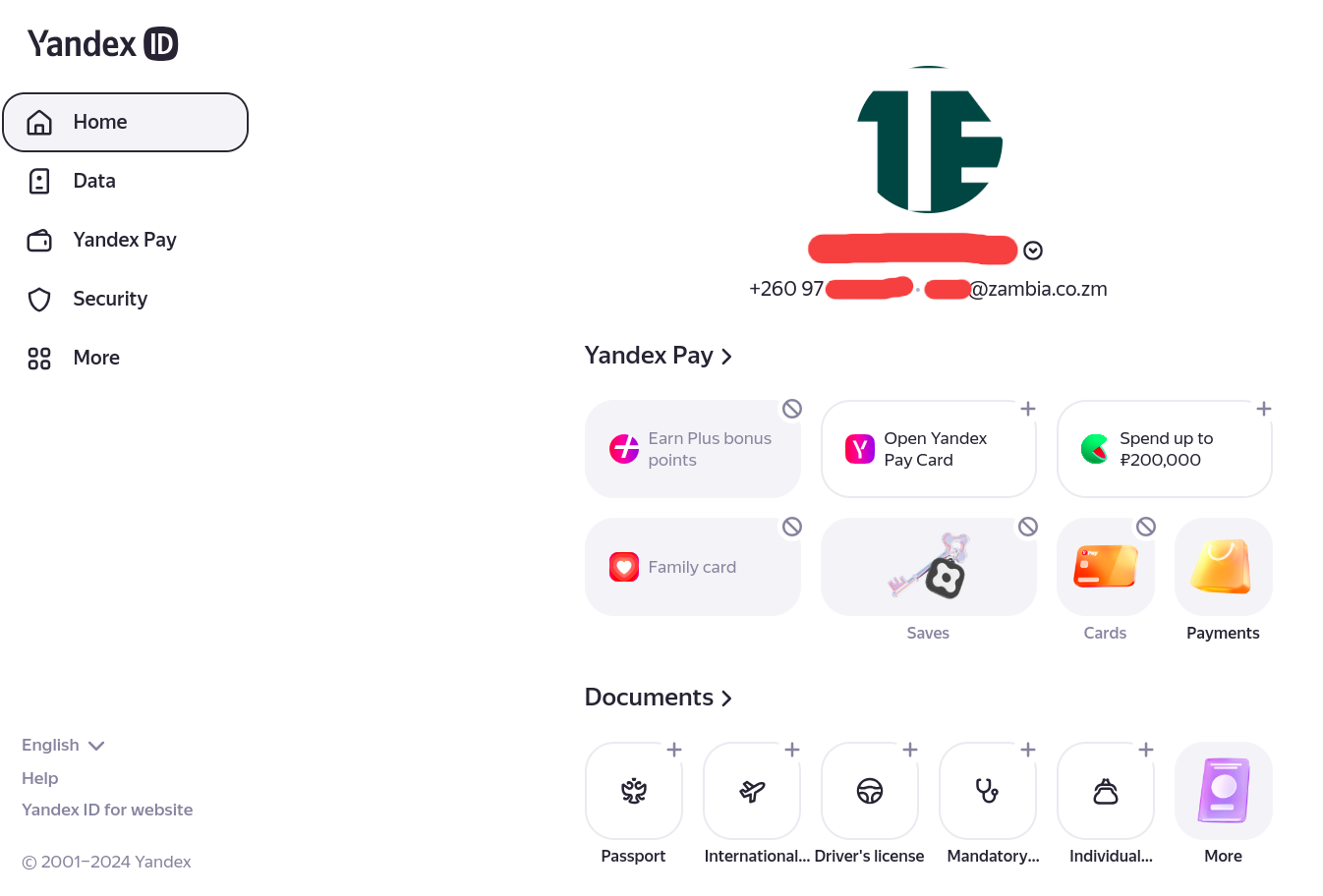
After logging in, go to “Security” (left menu).
STEP 2
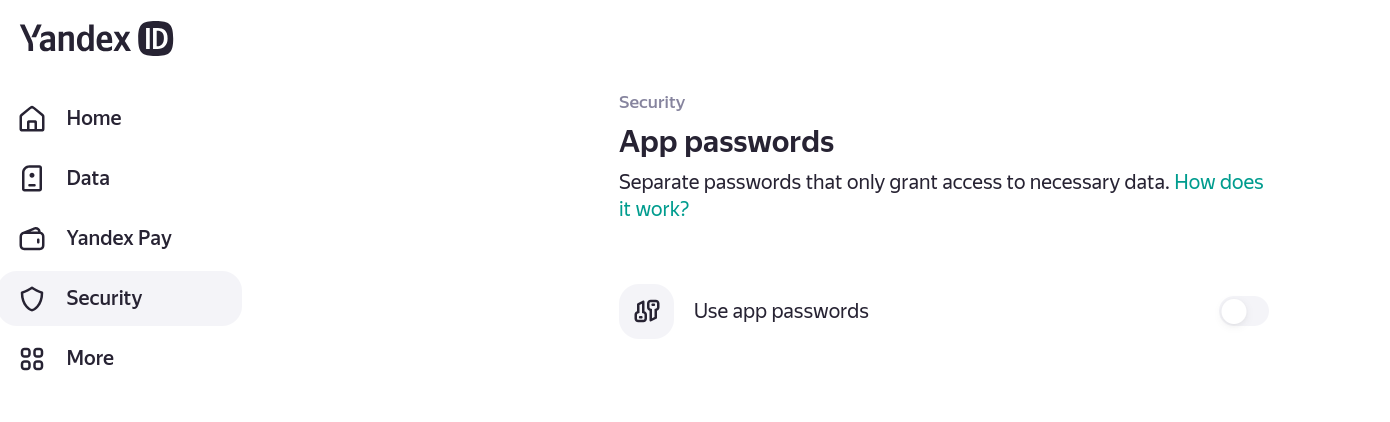
Scroll to the bottom of the Security page that opens and go to “App passwords”. Click on “Use app passwords”.
STEP 3
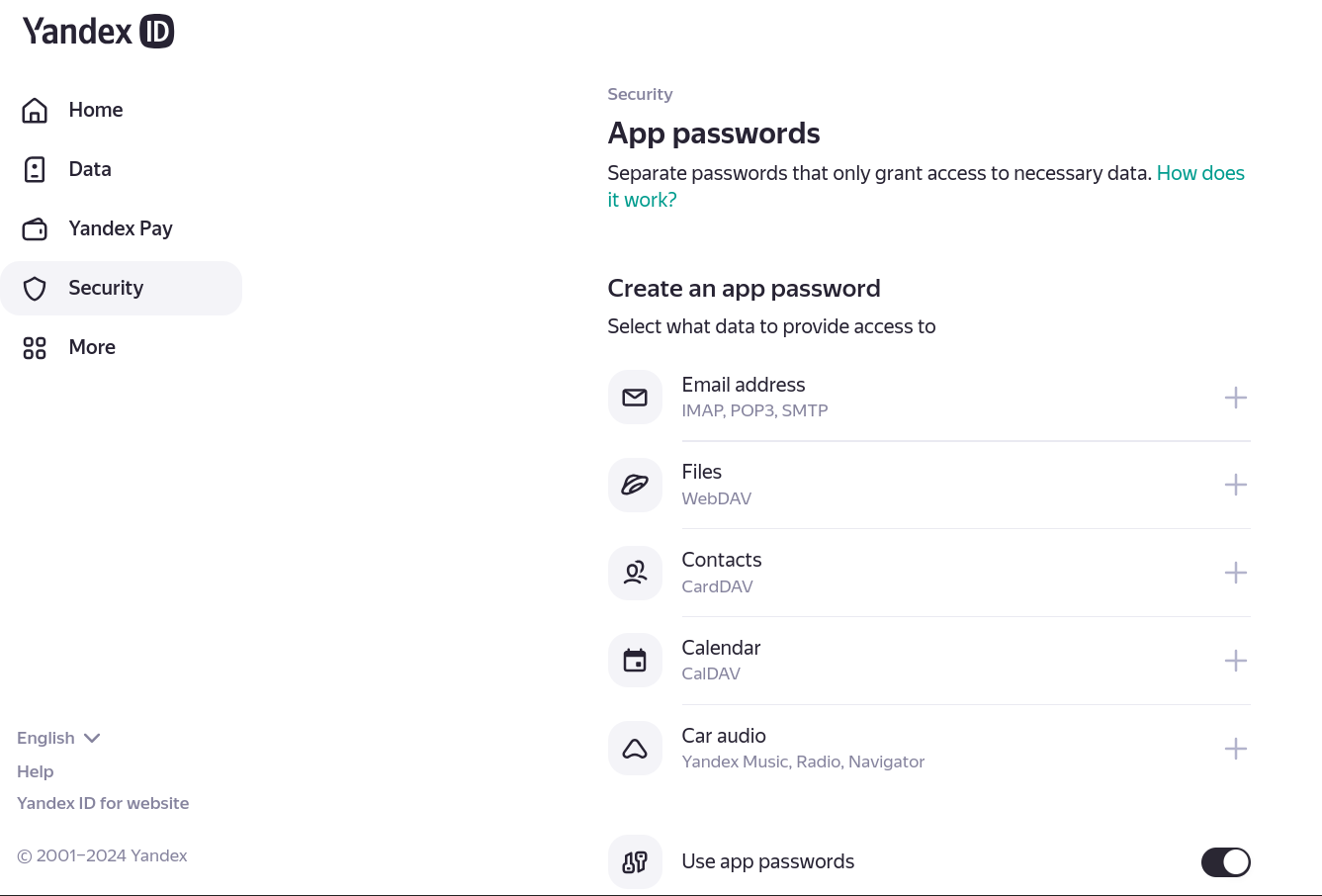
Then click on “Email Address” which is the first choice on the list that will appear.
STEP 4
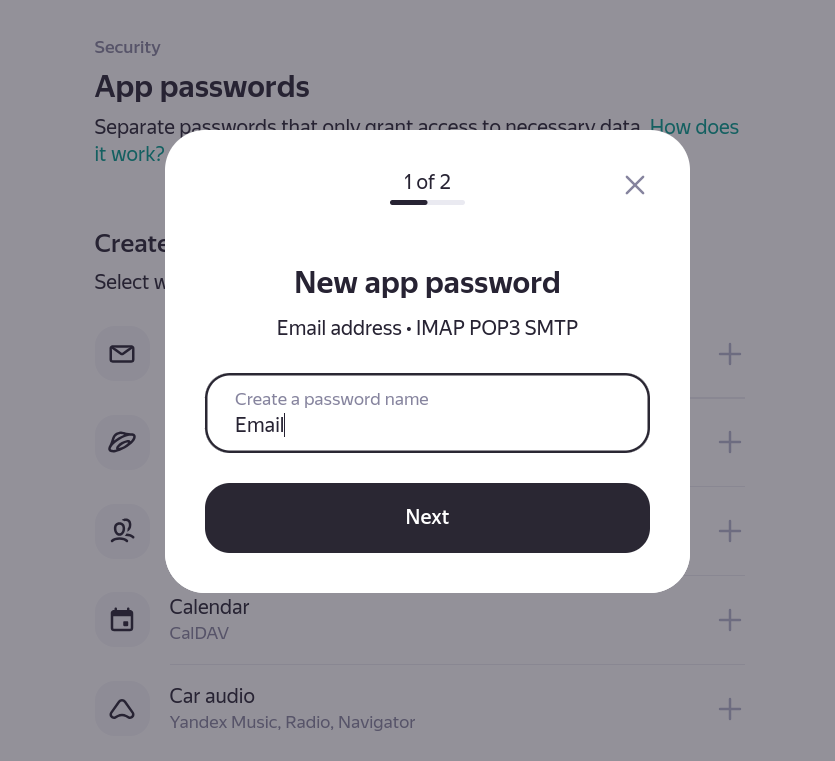
A popup will show and then type in any name for this password just to distinguish it (eg a word, initials, a name, etc). Click “Next”.
STEP 5
An app password will then show on the screen. It is ONLY SHOWN ONCE so you need to write it down or copy it or save it somewhere or take a screenshot.
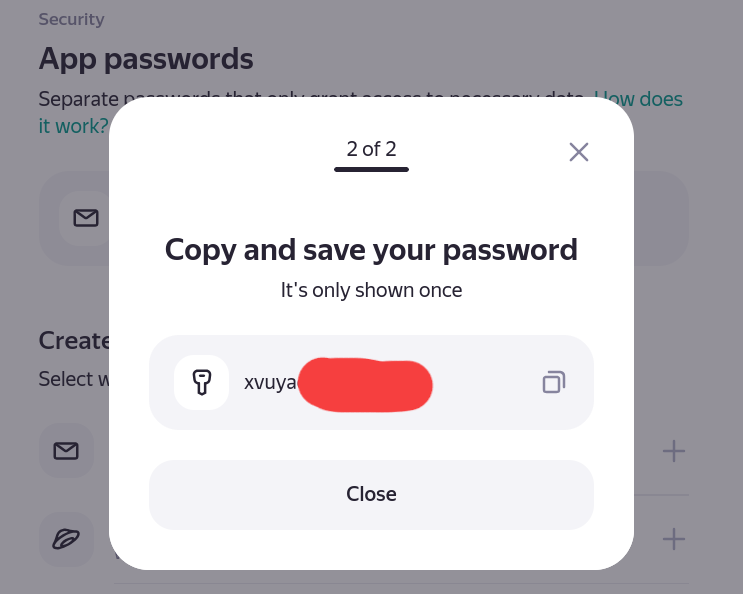
Use this as your password in the email settings on your phone app, tablet app or on a computer in Outlook, Thunderbird, etc. If you lose this password in future, you can come back and create a new one.
EMAIL IMAP/POP3 MAIL SERVER SETTINGS
IMAP (Most Recommended)
Incoming mail server — imap.yandex.com
Connection security — SSL
Port — 993
Outgoing mail server — smtp.yandex.com
Connection security — SSL
Port — 465
POP3 (Older technology)
Incoming mail server — pop.yandex.com
Connection security — SSL
Port — 995
Outgoing mail server — smtp.yandex.com
Connection security — SSL
Port — 465